
Choosing a Wireless Barcode Scanner in 2026 means matching the device to the work, not simply picking the longest advertised range. A scanner used at a checkout counter faces different demands from one used to count stock across a warehouse aisle. The right choice can make daily tasks smoother; the wrong one may add small delays to every scan. Small details matter.
Start with the barcodes you actually read. A store handling printed product labels may need different capabilities from a team scanning codes on phone screens or worn packaging. Check supported barcode formats, connection type, and compatibility with your computers, tablets, or point-of-sale system. Bluetooth can suit mobile workstations, while a dedicated receiver may be more practical for a fixed desk. Test the connection in the spaces where scanning happens, since walls, equipment, and distance can affect reliability.
Then consider battery life, charging routines, scan feedback, and comfort during a full shift. A lightweight scanner may feel easy to use at first, but grip shape and trigger placement matter after hundreds of scans. Look closely at stated range and durability, but treat specifications as starting points, not guarantees. Real conditions can be less tidy than a product sheet suggests. That trade-off matters.
This guide explains how to compare scanner types, key specifications, and everyday usability before you buy. It also highlights questions worth asking suppliers, including warranty coverage, software support, and replacement battery availability. A careful shortlist should reflect your actual workflow, budget, and likely growth—not a feature list alone.
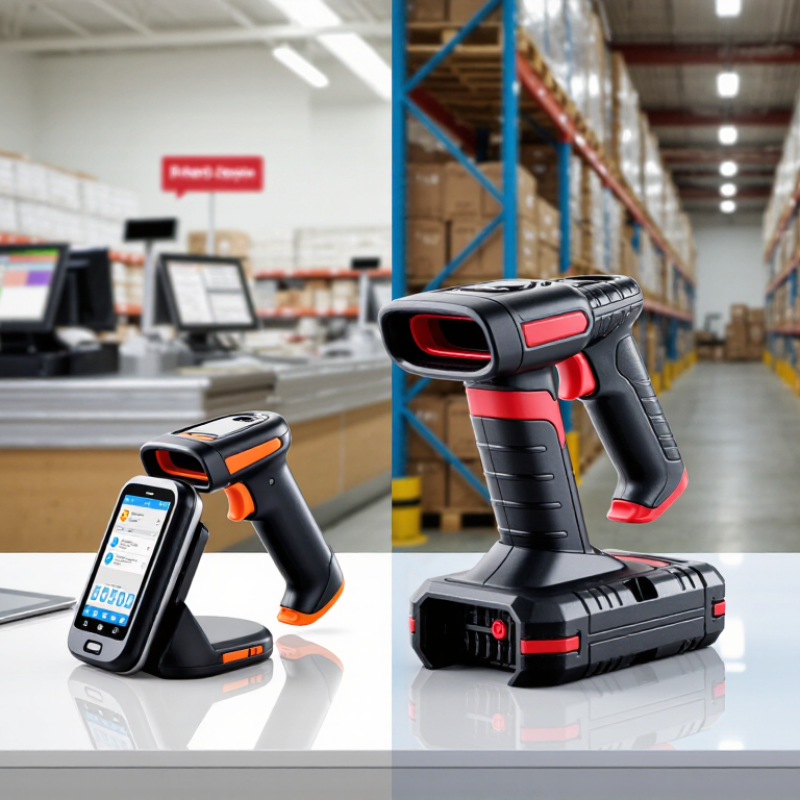
Before selecting a wireless barcode scanner, define what it must read and where it will operate. List barcode types, typical scan distance, daily scan volume, and whether labels are scratched, small, or curved. A checkout counter needs different reach than a high shelf or a moving packing station. Write down the slowest task, not just the average one. That detail matters. Test performance with real labels and normal lighting; glossy wrap and dim aisles can change read speed.
Map the work environment in practical terms: distance from the host device, obstacles, temperature shifts, dust, moisture, and drop exposure. The range listed in specifications may not match a crowded stockroom with metal shelving. Check whether the scanner reconnects reliably after leaving coverage, and whether staff can pair it without disrupting a shift. Consider battery life across full shifts, charging locations, spare-battery routines, and cradle placement. A lighter device may reduce fatigue, but a small grip can feel awkward with gloves. I would revisit the assumptions after a short trial; teams often discover exceptions during peak hours.
Tips: Test a unit with your own labels. Record misreads, reconnect time, and comfort after an hour. Ask two operators to try it; their feedback may disagree.

What this means: Bluetooth power classes offer a useful starting point when estimating wireless coverage: Class 1 is commonly associated with ranges up to 100 m, Class 2 around 10 m, and Class 3 around 1 m. These are approximate figures, not guaranteed working distances. Walls, interference, device design, and battery settings can reduce range, so test scanners in your actual workspace. Bluetooth range describes the wireless connection—not the distance at which a barcode can be read.
Start with the codes you actually scan. Linear 1D barcodes suit many labels with product numbers, while 2D codes can store more data in a compact square. A 2D imager can usually read both formats, making it a flexible choice for mixed inventory. But flexibility alone does not guarantee faster work. Check that the scanner supports your code types and software before buying.
Scan engine design affects where and how reliably a code can be read. Laser engines are generally intended for 1D codes; image-based engines capture a picture and decode 1D or 2D symbols. Compare working distance, minimum code size, motion tolerance, and performance under your actual lighting. Test printed labels, worn labels, and glossy packaging. A scanner that reads a clean sample on a desk may struggle with a small, angled code on a moving carton. I have seen specifications look reassuring, yet the real workflow still felt slow.
Tips: Test at your usual scan distance and angle. Include your smallest code. Check wireless range in the actual work area, since shelves and walls can affect the connection. Keep one awkward label in the test; it may reveal more than ten perfect ones.
Wireless barcode scanning is only as dependable as its connection to the host system. Identify where scans will happen: beside a counter, across a stockroom, or between metal shelves. Bluetooth may suit a compact workstation, while a dedicated radio connection can better serve some larger areas. The right choice depends on the scanner, receiver, and physical layout. Published range figures are useful, but they often assume open space. Test the device in the actual work area. Walk behind shelving and close doors. Watch for delayed transfers, dropped connections, and scans that arrive out of order. Small obstacles can matter.
Data reliability deserves more attention than a maximum-range claim. Check whether the scanner stores scans during a brief connection loss and sends them after reconnecting. Confirm how it signals a failed read; a clear beep or screen message helps staff catch errors immediately. Test repeated scans too, since duplicates can create inventory mistakes. Keep the scanner near its charging point and test it late in a shift, when battery levels are lower. Not just once. Record how long reconnection takes and whether unsent data remains intact. A specification sheet is only a starting point, and real conditions can be messier than the test plan. It is worth checking compatibility with the receiving software before ordering.
| Wireless setup | Typical operating range | Connectivity considerations | Data reliability checks | Best fit |
|---|---|---|---|---|
| Bluetooth, standard range | Often around 10 m (33 ft); walls, shelving, interference, and the host device can reduce usable range. | Pairs with a compatible computer, tablet, or mobile device. Confirm supported Bluetooth profiles and operating-system compatibility. | Check reconnection behavior after the host sleeps or moves out of range. Confirm whether scans are queued during disconnection or require a live connection. | Checkout counters, mobile workstations, and small work areas. |
| Bluetooth, extended range | Some Class 1 implementations specify up to 100 m (328 ft) under favorable conditions; this is not a guaranteed indoor working distance. | Actual range depends on both radio devices, antenna design, obstacles, and local radio conditions. Verify the scanner-to-host combination, not just the scanner specification. | Test at the farthest work point with doors, racks, and people in normal positions. Measure missed, delayed, and duplicate entries during repeated scans. | Larger work areas where a compatible host can remain within radio coverage. |
| Proprietary 2.4 GHz receiver | Varies by system; some specify tens of metres or more in open space. Walls and interference can substantially reduce range. | Uses a dedicated USB receiver and is generally intended for a nearby host. Check receiver availability, USB compatibility, and whether multiple scanners can share a receiver. | Confirm how the system indicates a lost link and whether scans are stored and forwarded after reconnection. Verify that reconnecting does not resend completed transactions. | Fixed workstations that need a simple wireless link to a computer. |
| Wi-Fi | Depends on the site’s wireless network, access-point placement, and configuration; there is no single scanner-to-host range. | Can connect across a managed network. Check network-band support, authentication requirements, roaming behavior, and integration with the receiving application. | Test roaming between access points, brief network outages, and application-server interruptions. Confirm local buffering, delivery confirmation, and duplicate handling. | Large facilities with managed Wi-Fi and network-based workflows. |
| Offline batch operation | Range is less important while scanning; recorded data is transferred when the scanner reconnects or is docked. | Check the stated storage capacity, supported barcode formats, transfer method, and whether the workflow requires a separate application or dock. | Verify capacity against the expected scan volume. Test power loss, full storage, interrupted transfer, and duplicate prevention before deployment. | Inventory counts and other tasks where continuous live transmission is unnecessary. |
Range figures are indicative, not guarantees. Confirm the exact model specifications and test connectivity in the intended environment before purchase.
Start with compatibility, not advertised range. Check that the scanner works with your operating system, point-of-sale software, and connection type. Some systems expect keyboard input; others need a specific driver or serial connection. Test a sample unit with the actual device and barcode labels used at work. A scanner that pairs easily but sends data into the wrong field is still a problem.
Battery life should match a real shift, including time spent away from its charging dock. Ask whether the stated runtime reflects continuous scanning or occasional use, and check how long a full recharge takes. Test it in place. A busy stockroom may need a spare battery or charging station nearby. Small details count.
Durability depends on the setting. For a dusty warehouse or damp back room, check the ingress rating and drop-test specifications, then consider how the scanner feels with gloves. Security deserves the same attention: review pairing controls, wireless encryption, and the process for installing firmware updates. Avoid leaving devices discoverable when they are not in use.
There is no perfect choice; a rugged model may feel heavy during a long checkout shift. A short trial with staff can reveal that trade-off before several units are purchased.
Choosing a wireless barcode scanner in 2026 means testing it where it will actually work. A quiet desk cannot reveal how it handles a busy stockroom. Scan small labels from different angles, then try glossy packaging, curved surfaces, and dim corners. Note missed reads, delays, and how often you need to reposition the scanner. Small details matter.
Check wireless performance across the real distance between workers and receiving stations. Walk behind shelving and through doorways while scanning; signal strength can change quickly. Test a full shift, not just a few minutes. Battery life, charging time, grip comfort, and pairing stability all affect daily use. A scanner may feel light at first, then tiring after hundreds of scans.
Tips: Use the same labels and tasks for every candidate. Track successful reads, seconds per scan, connection drops, and battery remaining. Ask several employees to test each unit, since hand size and scanning habits vary.
Compare results against your workflow, not a feature list. If one scanner reads faster but causes more retries, it may slow the team overall. Check whether it works with your existing software and whether staff can recover easily after a lost connection. Real floors surprise you. Keep notes from each trial, including awkward moments; they may point to a genuine fit issue, or just a learning curve. No test is perfect, but a consistent trial makes the choice more reliable.
For an immediate response, please call this
number08045801431
Price:
