Why Is My Display Screen Monitor Not Working?
Why Is My Display Screen Monitor Not Working? The answer may involve power, signal input, cables, drivers, or the monitor itself. A dark panel does not always mean permanent failure. Check the power LED first. Then press the monitor’s menu button. If the menu appears, the panel still has power.
The market is substantial. IDC’s Worldwide Quarterly PC Monitor Tracker reported approximately 123 million monitor shipments worldwide in 2023. That volume means many homes and offices depend on displays every day. It also explains why small faults can create major productivity losses. A loose HDMI cable, incorrect input source, sleeping computer, or failed docking station can stop an otherwise healthy Display Screen Monitor.
Repairability matters here. Kyle Wiens, iFixit’s chief executive and a recognized repair expert, said, “If you can’t fix it, you don’t own it.” His point applies to careful diagnosis, not reckless disassembly. Never open a monitor without understanding electrical risks. Start with safe checks: test another outlet, select the correct input, reconnect the cable, and try a different computer. Look for a faint image with a flashlight. That detail may indicate a backlight problem.
Some symptoms are confusing. A blinking LED can suggest standby mode, not failure. A “No Signal” message often points to the computer or cable. This guide will not pretend every fault has one neat answer. Even experienced technicians can misread a damaged port as a software issue. Careful testing, reliable manufacturer documentation, and qualified service support provide the most dependable path forward.
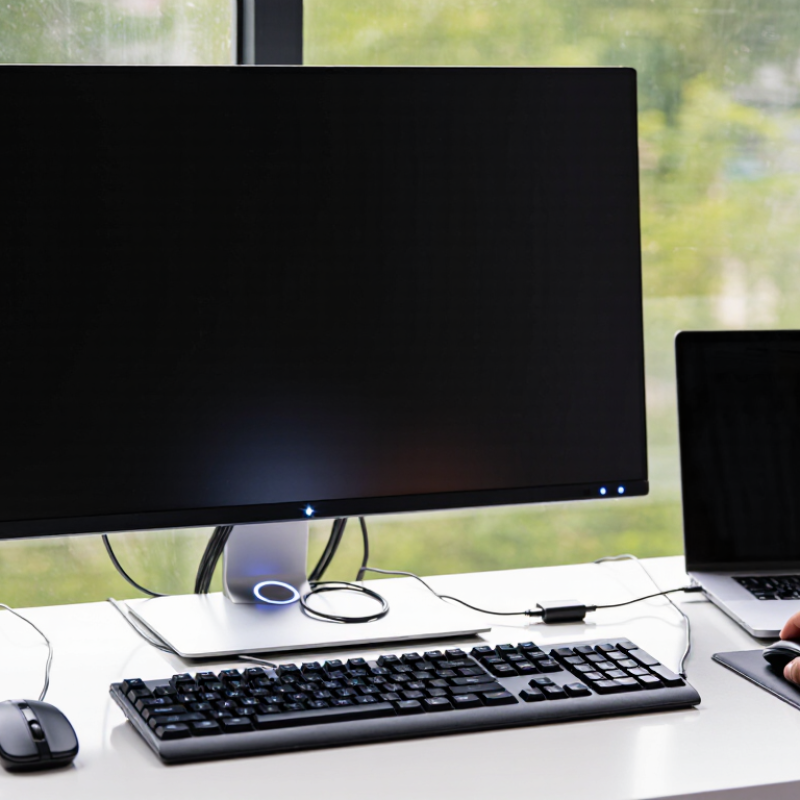
Common Reasons a Display Screen Monitor Stops Working
Why Is My Display Screen Monitor Not Working?
Common Reasons a Display Screen Monitor Stops Working
A dark monitor does not always mean the screen is damaged. A loose power cable can interrupt the entire display. Check both ends of the power cord, then test another wall outlet. Look for a small power light. No light usually suggests a power problem, while a lit light may indicate a signal issue. I once blamed the monitor before noticing a half-connected cable behind the desk.
The video cable may also be loose, bent, or connected to the wrong port. Disconnect it carefully, inspect the pins, and reconnect it firmly. If possible, test another compatible cable. Your computer may be running, but sending no image. Try waking it with the keyboard or restarting it. A frozen system can look like a broken monitor. Still, repeated black screens deserve professional inspection.
Tips: Reduce brightness only after confirming the monitor works. Check the input setting and select the port in use. Remove docking devices temporarily when troubleshooting. Keep cables away from chair wheels and tight bends. Do not open the monitor housing, especially if you lack electrical training. That shortcut can create a greater hazard. If the screen flickers, smells unusual, or shows spreading lines, unplug it and seek qualified service. My own checks are not perfect, so recording each test can prevent missed details.
How to Check the Monitor’s Power and Connection
Why Is My Display Screen Monitor Not Working?
A blank display often starts with power, not software. Check that the power cable sits firmly in both the monitor and wall outlet. Test the outlet with a lamp. Look for a steady power light, then press the monitor’s button once. Avoid repeatedly pressing it. That can hide the real problem. The U.S. Department of Energy estimates that standby power can represent 5–10% of household electricity use, so sleep and off-mode behavior deserve attention. A monitor that appears dark may be sleeping, disconnected, or receiving no power.
Next, inspect the video connection. Remove and reconnect the cable at both ends. Check for bent pins, loose adapters, or a cable pulled sharply behind the desk. Select the correct input source through the monitor’s menu. If possible, connect the display to another working device. Then try a different cable. My own troubleshooting experience shows that a loose connection is easy to miss, especially when the screen still shows a faint indicator light. It is not always a failed panel.
Tips: Unplug the monitor for 60 seconds, then reconnect it directly to the wall. Skip extension strips during testing. Record which light appears and when it changes. This small detail can help a technician identify a power-board or signal issue. ENERGY STAR’s display testing separates on-mode, sleep-mode, and off-mode power, which supports checking each state instead of guessing.
How to Diagnose Computer, Graphics, and Display Settings
A blank monitor does not always mean the screen is broken. In repair work, I check simple power problems before changing software settings. Confirm the power light is on, then reseat both ends of the video cable. Select the correct input source. A loose connector can look like a serious graphics failure.
Next, test the computer with another display or television. If the second screen works, inspect resolution, refresh rate, and display mode. A setting outside the monitor’s range can produce a black screen. On a laptop, use the keyboard display-switch command carefully. I once blamed a faulty graphics card when the system was only sending the image to a disconnected screen.
Graphics settings need a slower check. Restart the computer and watch for the startup logo. If it appears, the hardware may be working, while the operating system or graphics driver is failing. Start in recovery or safe mode, remove a recently installed driver, and install a verified replacement from the computer manufacturer’s support page. Also check for overheating, unusual fan noise, or a damaged port. Do not force a cable into place. That can bend contacts and create a second fault.
Troubleshooting is not perfectly linear. A working cable can fail after movement, and a stable display can flicker under heat. Record each test and its result. If several displays remain blank before startup, professional hardware testing is safer than repeated resets.
When to Repair or Replace a Nonworking Monitor
Why Is My Display Screen Monitor Not Working?
When to Repair or Replace a Nonworking Monitor
A dark monitor does not always mean permanent failure. Check the power cable, wall outlet, and input source before opening anything. Press the monitor’s menu button. If the menu appears, the computer or video cable may be the real problem. A faint image under a flashlight suggests a failed backlight. No light, sound, or menu response points more strongly to a power circuit fault. Also inspect for cracked panels, loose ports, burning smells, or unusual heat. Stop using the monitor when these signs appear.
Repair usually makes sense when the panel is clear and the fault involves a cable, power adapter, button, or replaceable internal board. A qualified technician should test internal components because stored electrical energy can remain dangerous. Ask for a written estimate, including parts and labor. If repair costs approach half the price of a comparable replacement, replacement often offers better value. This rule is useful, but not perfect.
Replacement becomes more practical when the screen has dead areas, spreading lines, severe flickering, or repeated shutdowns. An older monitor may also consume more energy and lack suitable ports or height adjustment. Consider your daily work, eye comfort, and the cost of lost time. Do not replace it too quickly. A loose cable fooled me once in a troubleshooting situation, and that mistake was avoidable. Check the simple causes carefully before making an expensive decision.




 Send Inquiry

